Showing posts with label tutorial. Show all posts

1 Strawberry Hearts Notebook Tutorial


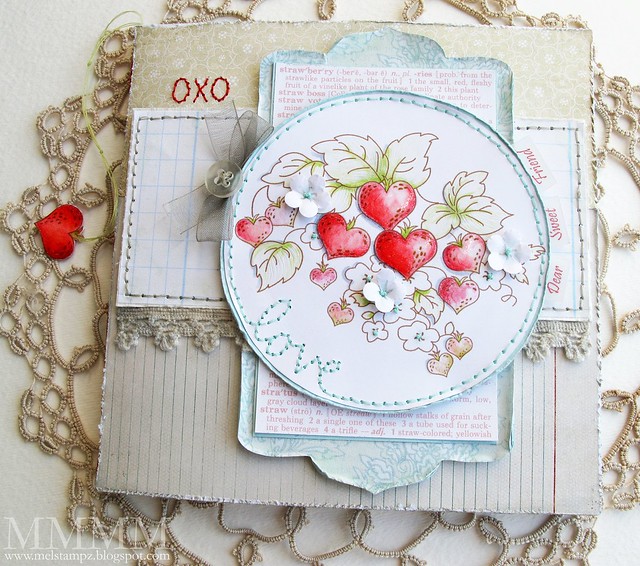
MEL! What more can I say! A little tidbit you should know, if it weren't for Mel there would be no Tiffany Doodles! One day, (pushing 2 years ago now), I was searching for something on the internet and don't even remember what it was, and it had nothing to do with stamping or paper b/c I didn't "do" any of that then!! But somehow I landed on Mel's site. I was in total amazement at the paper crafting she did. I wanted to do it! I was hooked from that moment on! My upstairs loft/TV room started evolving into a crafting room with sparkly goodness, ribbon, markers, paper cutters, ink pads, and craft supplies from one wall to the other! And after discovering that I could turn my own drawings into digital stamps.... Tiffany Doodles was born!! All b/c of MEL!! =) So, today I am proud to show you this fancy little project that (my paper crafting idol) has made with my Digi Stamp set, Strawberry Hearts!


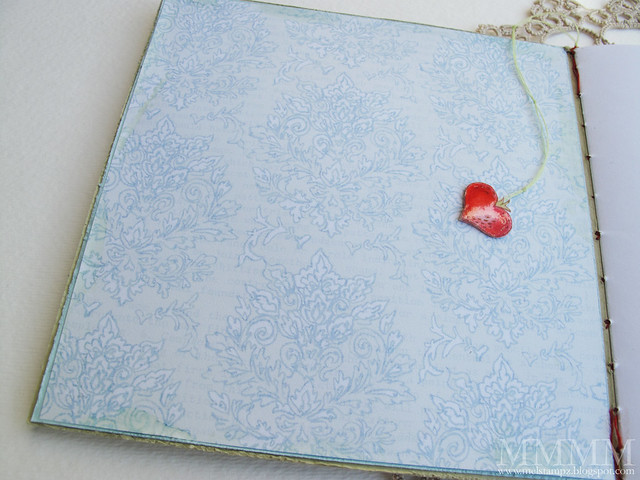
Please visit Mel's Blog to see how she made this beautiful notebook!  What a great gift this would make for Mother's Day!!  Oh, and if you are a Tiffany Doodles fan and enjoy my digis!  Be sure to "Thank Mel!!"

Make your own fancy notebook!  Get the Strawberry Hearts Digi stamp here!
By the way, this digital stamp set also has a matching Strawberry Hearts Digital Papers!

3 Desktop Note Box Tutorial

Recycled Shake-N-Bake box Tutorial!  This is a fun way to reuse boxes in your pantry!  I needed something on my desk to hold all my index cards that are everywhere!  I jot notes down all over the place and now I have a cute little box to put them in!


I had already gotten this far in my project when I decided to start photographing to make a tutorial.  I could tell I was gonna like this and thought other people might like it too!!   So to start.... I cut the top of my box at an angle as you can see below.  I then proceed to cover it in some pretty paper!

I didn't feel the need to cover the inside too, but you can!

This is what it looked like after I got it all wrapped up!

Next, my box was so lightweight I though it might tip over easily so I needed something to weight it down and make the bottom heavy.  After looking around my craft room - the best idea I could come up with was to glue down these little flat glass marbles, you can get a whole bag of them from the dollar store!

Next, I thought it needed some pretty feet!  I got a little baggie of these tiny wood pieces from Hobby Lobby and painted them silver and glued them right on in each corner!  I think having feet on items make it look much more dainty!

Next, I cut a string of this plastic beading from Wal-mart and glued it around the top edge!  Very simple!

Then make yourself a label for the front and decorate in any way you'd like!  Hope this tutorial inspired you to make something today!!  If this tutorial has been helpful to you please leave me a comment!! =)

7 How to use a Digital Stamp in Word

A beginner's Tutorial...


I'm always surprised at the number of people who come here and are totally new to digital stamping! I wanted to create this basic tutorial to help those beginners. Especially the ones who don't have the photo editing software, like Photoshop, Elements, or Paint Shop Pro.

Opening a Digital stamp in Word (with resizing, rotating and moving!)
Note: I'm using Word 2007 so the menu items may vary in different versions, but most references will be the same.
1. Open a new Word Document.
2. Go to your 'Insert' menu and choose 'Picture from File'. When the dialog box opens go to the location where you saved your digital stamp file, click it and choose 'Insert'.
3. The image will open in your new document in it's original size with a selection box around it with "handles" in each corner.

4. If you need to resize your image to fit your project then simple click on one of the corner handles and drag it out (or in) to suit your needs.  Note: if you are using a digital stamp that is made to fit a specific die cut then don't resize it b/c it's already made to fit.
5. If you done and ready to print your image. Just go to File > Print.
But, let's say you want to create a scene for your card by adding another image to go with the flower. The first thing you need to do is (while your flower is selected you should be on your Picture Format Menu.)
6. Go to 'Text Wrapping' and select 'Behind Text'. What this little trick does is it allows you to move your image anywhere on the page that you want it. Even if there is something else on the page. We will move it in a minute.

7. Next, I want to rotate this flower to point in another direction. So while the image is still selected, put your mouse over the green handle on top of your image. Your mouse will turn into little arrows going in a circle. This means that you can now drag your mouse and your image will turn!  Note: this will only pivot the image on it's axis and not move it!  So spin it 'round.... like so...

Now, I think this flower needs a hummingbird!  I want to add another image to my little flower scene.
8. Repeat Step #2 above and you will have something like this... B/c you put your flower image behind text earlier, this let your hummer come in right on top of it!  But we need to buzz that hummer around a little.

9. Now with your new hummingbird image selected repeat Step #6 above and put it 'behind text'. Now you can move your bird right where you want it!

Remember to keep your eye on your ruler at the top of your document and think about the size of your card. Right now I feel like my images are too big to fit my card so I'm going to resize them and move them around a bit. You already know how to achieve this by using the steps above to get your scene just how you want it! Just drag their corners and make them smaller and move them around!
I hope you got something out of this tutorial!  I have more planned for you!

6 Paper Piecing Tutorial!

Who loves Paper Piecing!  I do!! I do!! Today I'll share with you a quick tutorial on this fun and easy technique!  I'll be using my St. Jude Card Drive card for our example today!  BTW, if you haven't already done so please visit Winter's Site for the rules & details on this card drive!  Tiffany Doodles is a VERY proud sponsor!

Today we are going to paper piece together this fun little heart with wings!  I'll start with my card supply list.

  • Winged Hearts - TiffanyDoodles.com
  • Labels 10 - Spellbinders
  • Designer Paper - Paisley Road by Prima
  • Sentiment - letter stamps by Paper Studio

So, lets start by printing our digi stamp onto the copy paper. I start out by printing the stamp 3 times on 1 sheet of copy paper. Make sure they are all the same size.  I want to do the heart with the pretty turquoise flower paper so I cut a piece big enough to fit over the heart.  Then I cut a pink paper to cover 1 side of wings and orange for the other side.... (I changed this to more colors later.... you'll see).


The next step is to tape the paper over your digis! I use the blue painters tape b/c it peels off easily.  Be sure you cover the whole area that you'll be cutting out later.


Also, make sure you tape the top corners for sure, b/c your paper will be more likely to jam if you don't, like mine did! I smooshed it out really good hoping it would run through again after I taped it better!


It ran through again just fine!! After you print, you'll see it printed right on top of your designer paper!


Something to keep in mind when you are taping your paper down.  Make sure your tape doesn't cover any part of your stamp.  When you are taping you can't actually tell, but you can slightly lift your paper to make sure! I almost got too close on the top right pink wing!  Any closer and I would have to do over!  =)


Now you have your paper pieces ready to cut!  However, it was at this point that I decided to add more colors to my wings!


I used the same piece of copy paper b/c I needed 3 digis stamped the same size again.  The same paper was still usable since I carefully removed my tape the time before.  So I printed again with my new colors!


Here are all of my final pieces I used for the Winged Heart I had in mind!


Next I printed a single heart (same size) onto a sheet of card stock and cut it out.  I glued the pieces to it to make a sturdy single piece to place on my card with pop dots!


And here is my final product!  All pieced together!
I hope you enjoyed this quick tutorial!  If you have a tutorial you would like to share here at Tiffany Doodles please email me what you have in mind!  I would love it if you used a Tiffany Doodles Digital Stamp for your tutorial, however it doesn't have to be - it doesn't even have to feature a stamp.  But if it does, I ask it be a digital stamp of some sort.  It can be any type of paper project, coloring technique, as long the object of focus for the tutorial doesn't feature a rubber/clear stamp.  It can be done with photos or via You Tube.

Related Posts Plugin for WordPress, Blogger...

 
Blog Home | Store Home | TD Flickr Gallery | About | Terms | Support | Contact Tiffany
Tiffany's Garden | TLillian Blog Design | Web Design and Photography

Powered by Blogger

Wondering about my Blog Design? Long story...
Originally a WordPress Theme Design by New WP Themes | Then made for Blogger by Lasantha | Then totally Re-Designed, Re-formatted & made Pretty by me, Tiffany!